2019年5月25日 星期六

Cloud Shell & gcloud -- Google Cloud Platform GCP 實際操作實習手冊

Overview

Google Cloud Shell provides you with gcloud command-line access to computing resources hosted on the Google Cloud Platform. Cloud Shell is a Debian-based virtual machine with a persistent 5GB home directory, which makes it easy for you to manage your GCP projects and resources. The Cloud SDK gcloud and other utilities you need come pre-installed in Cloud Shell, which allows you to get up and running quickly.
In this hands-on lab, you will learn how to connect to computing resources hosted on the Google Cloud Platform via Cloud Shell. You will learn how to use Cloud Shell and the gcloud command.
We encourage students to type the commands themselves, to help encourage learning of the core concepts. Many labs will include a code block that contains the required commands. You can easily copy and paste the commands from the code block into the appropriate places during the lab.

What you'll do

  • Practice using gcloud commands.
  • Connect to storage services hosted on the Google Cloud Platform.

Prerequisites

  • Familiarity with standard Linux text editors such as vimemacs, or nano.

Setup

Before you click the Start Lab button

Read these instructions. Labs are timed and you cannot pause them. The timer, which starts when you click Start Lab, shows how long Cloud resources will be made available to you.
This Qwiklabs hands-on lab lets you do the lab activities yourself in a real cloud environment, not in a simulation or demo environment. It does so by giving you new, temporary credentials that you use to sign in and access the Google Cloud Platform for the duration of the lab.

What you need

To complete this lab, you need:
  • Access to a standard internet browser (Chrome browser recommended).
  • Time to complete the lab.
Note: If you already have your own personal GCP account or project, do not use it for this lab.

How to start your lab and sign in to the Console

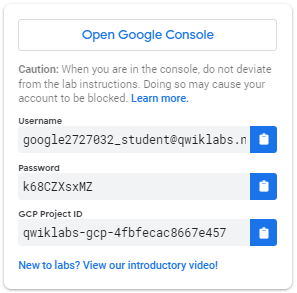
  1. Click the Start Lab button. If you need to pay for the lab, a pop-up opens for you to select your payment method. On the left is a panel populated with the temporary credentials that you must use for this lab.
    Open Google Console
  2. Copy the username, and then click Open Google Console. The lab spins up resources, and then opens another tab that shows the Choose an account page.
    Tip: Open the tabs in separate windows, side-by-side.
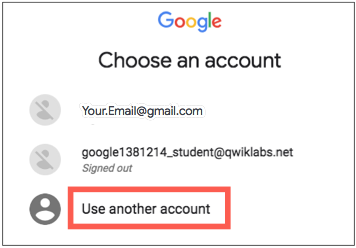
  3. On the Choose an account page, click Use Another Account.
    Choose an account
  4. The Sign in page opens. Paste the username that you copied from the Connection Details panel. Then copy and paste the password.
    Important: You must use the credentials from the Connection Details panel. Do not use your Qwiklabs credentials. If you have your own GCP account, do not use it for this lab (avoids incurring charges).
  5. Click through the subsequent pages:
    • Accept the terms and conditions.
    • Do not add recovery options or two-factor authentication (because this is a temporary account).
    • Do not sign up for free trials.
After a few moments, the GCP console opens in this tab.

Activate Google Cloud Shell

Google Cloud Shell is a virtual machine that is loaded with development tools. It offers a persistent 5GB home directory and runs on the Google Cloud. Google Cloud Shell provides command-line access to your GCP resources.
  1. In GCP console, on the top right toolbar, click the Open Cloud Shell button.
    Cloud Shell icon
  2. In the dialog box that opens, click START CLOUD SHELL:
    Start Cloud Shell
It takes a few moments to provision and connect to the environment. When you are connected, you are already authenticated, and the project is set to your PROJECT_ID. For example:
Cloud Shell Terminal
gcloud is the command-line tool for Google Cloud Platform. It comes pre-installed on Cloud Shell and supports tab-completion.
You can list the active account name with this command:
gcloud auth list
Output:
Credentialed accounts:
 - <myaccount>@<mydomain>.com (active)
Example output:
Credentialed accounts:
 - google1623327_student@qwiklabs.net
You can list the project ID with this command:
gcloud config list project
Output:
[core]
project = <project_ID>
Example output:
[core]
project = qwiklabs-gcp-44776a13dea667a6

Understanding Regions and Zones

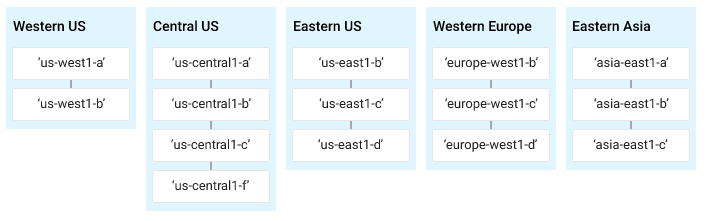
Certain Compute Engine resources live in regions or zones. A region is a specific geographical location where you can run your resources. Each region has one or more zones. For example, the us-central1 region denotes a region in the Central United States that has zones us-central1-aus-central1-bus-central1-c, and us-central1-f.
regions_and_zones.png
Resources that live in a zone are referred to as zonal resources. Virtual machine Instances and persistent disks live in a zone. To attach a persistent disk to a virtual machine instance, both resources must be in the same zone. Similarly, if you want to assign a static IP address to an instance, the instance must be in the same region as the static IP.

Use the command line

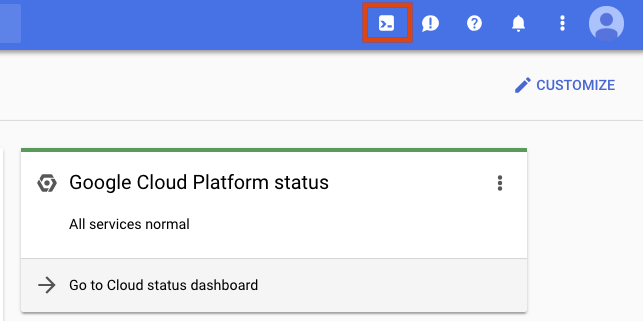
Open a new Cloud Shell session by clicking on the icon in the top right corner of the GCP Console:
cloud-shell.png
After Cloud Shell is activated you can use the command line to invoke the Cloud SDK gcloud command or other tools available on the virtual machine instance. You can also use your $HOME directory in persistent disk storage to store files across projects and between Cloud Shell sessions. Your $HOME directory is private to you and cannot be accessed by other users.
Let's take a look at some of the commands available.
gcloud offers simple usage guidelines that are available by adding the -h flag onto the end of any gcloud invocation. Run the following command in Cloud Shell:
gcloud -h
More verbose help can be obtained by appending --help flag, or executing gcloud help command. Run the following in Cloud Shell:
gcloud config --help
Press use the enter key or the spacebar to scroll through the help content. Press q to exit the content. Now run the following command:
gcloud help config
You can see that the gcloud config --help and gcloud help config commands are equivalent. Both give long, detailed help.

Use your home directory

Now let's try out your home directory. The contents of your Cloud Shell home directory persists across projects between all Cloud Shell sessions, even after the virtual machine terminates and is restarted.
Change your current working directory:
cd $HOME
Open your .bashrc configuration file using vi.
vi ./.bashrc
The editor opens and displays the contents of the file. Press the ESC key and then :q to exit the editor.

Using gcloud commands

Let's view the list of configuration in our environment. From reading the long, detailed help results in the previous step, we know we can use the command gcloud list.
gcloud config list
To check how other properties are set, see all properties by calling:
gcloud config list --all

Managing Cloud Storage data

You can use the gsutil tool in Cloud Shell to manage Cloud Storage resources. This includes creating and deleting buckets and objects, copying and moving storage data, and managing bucket and object ACLs. gsutil will also let you transfer data in and out of your Cloud Shell instance.
Try creating a Cloud Storage bucket. Bucket names must be unique, so replace unique-name with something else, or append the name to make it unique.
gsutil mb gs://unique-name

Now we'll create some data to upload to your bucket.
First, create a test file:
vi test.dat
Start the editor:
i
Add some data to your file:
Welcome to gcloud!
Save the test.dat file: <ESC>, then
:wq
Now upload some data to the bucket you created (make sure to replace "unique-name" with your storage bucket):
gsutil cp test.dat gs://unique-name
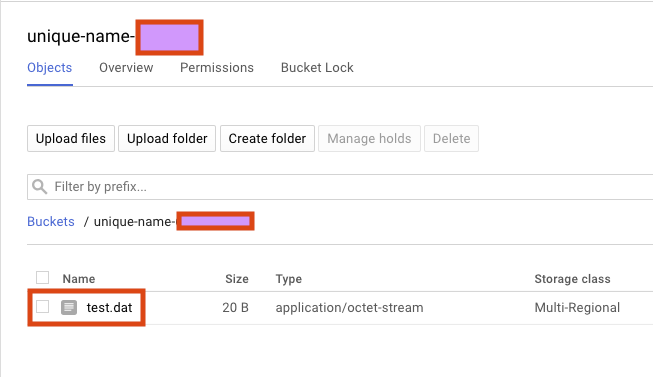
To see your bucket and file, open the navigation menu and select Storage > Browser. Then click on your bucket. You should see the test.dat file:
storage-bucket.png


Compute Engine: Qwik Start - Windows -- Google Cloud Platform GCP 實際操作實習手冊

Google Compute Engine lets you create and run virtual machines on Google infrastructure. Compute Engine offers scale, performance, and value that allows you to easily launch large compute clusters on Google's infrastructure.
You can run your Windows applications on Google Compute Engine and take advantage of many benefits available to virtual machine instances such as reliablestorage options, the speed of the Google network, and Autoscaling.
In this hands-on lab, you will learn how to launch a Windows Server instance in Google Compute Engine, and connect to it using the Remote Desktop Protocol.
If you aren't using Windows on your local machine, install a third-party RDP client such as Chrome RDP by FusionLabs.

Setup and Requirements

Before you click the Start Lab button

Read these instructions. Labs are timed and you cannot pause them. The timer, which starts when you click Start Lab, shows how long Cloud resources will be made available to you.
This Qwiklabs hands-on lab lets you do the lab activities yourself in a real cloud environment, not in a simulation or demo environment. It does so by giving you new, temporary credentials that you use to sign in and access the Google Cloud Platform for the duration of the lab.

What you need

To complete this lab, you need:
  • Access to a standard internet browser (Chrome browser recommended).
  • Time to complete the lab.
Note: If you already have your own personal GCP account or project, do not use it for this lab.

How to start your lab and sign in to the Console

  1. Click the Start Lab button. If you need to pay for the lab, a pop-up opens for you to select your payment method. On the left is a panel populated with the temporary credentials that you must use for this lab.
    Open Google Console
  2. Copy the username, and then click Open Google Console. The lab spins up resources, and then opens another tab that shows the Choose an account page.
    Tip: Open the tabs in separate windows, side-by-side.
  3. On the Choose an account page, click Use Another Account.
    Choose an account
  4. The Sign in page opens. Paste the username that you copied from the Connection Details panel. Then copy and paste the password.
    Important: You must use the credentials from the Connection Details panel. Do not use your Qwiklabs credentials. If you have your own GCP account, do not use it for this lab (avoids incurring charges).
  5. Click through the subsequent pages:
    • Accept the terms and conditions.
    • Do not add recovery options or two-factor authentication (because this is a temporary account).
    • Do not sign up for free trials.
After a few moments, the GCP console opens in this tab.


Create a virtual machine instance

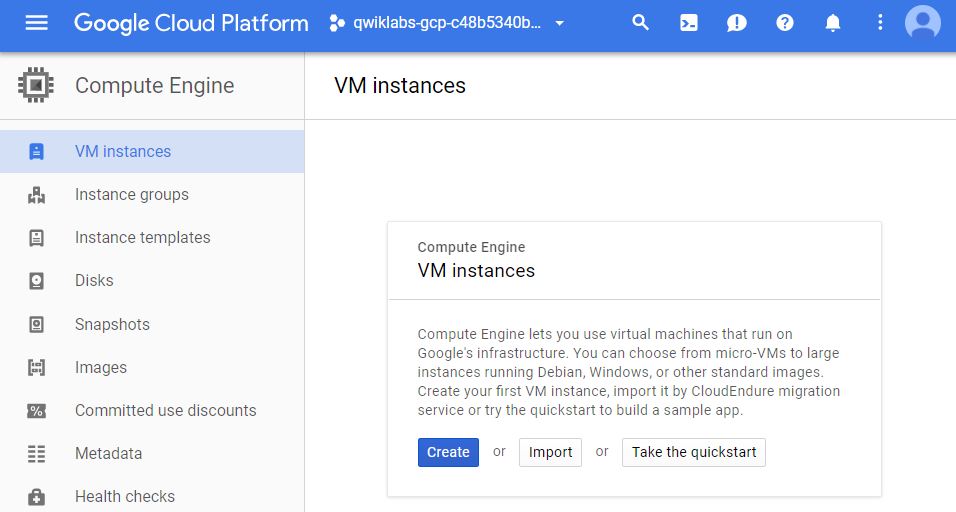
In the GCP Console, go to Compute Engine > VM instances, then click Create.
b4ddd59640deb64e.png
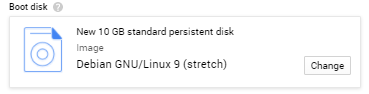
In the Boot disk section, click Change to begin configuring your boot disk.
4b849540c49066e9.png
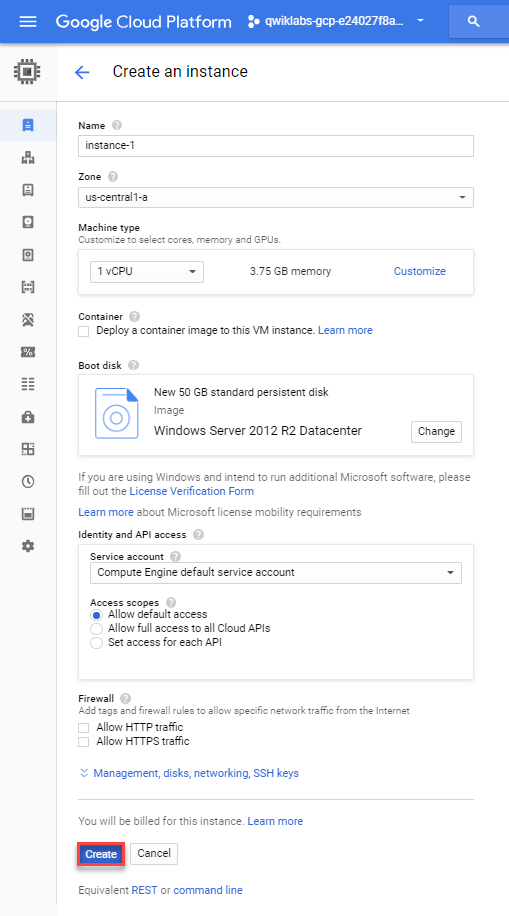
Choose Windows Server 2012 R2 Datacenter, then Select. Leave all other settings at their defaults.
6828f25897d732e6.png
Click the Create button to create the instance.

Activate Google Cloud Shell

Google Cloud Shell is a virtual machine that is loaded with development tools. It offers a persistent 5GB home directory and runs on the Google Cloud. Google Cloud Shell provides command-line access to your GCP resources.
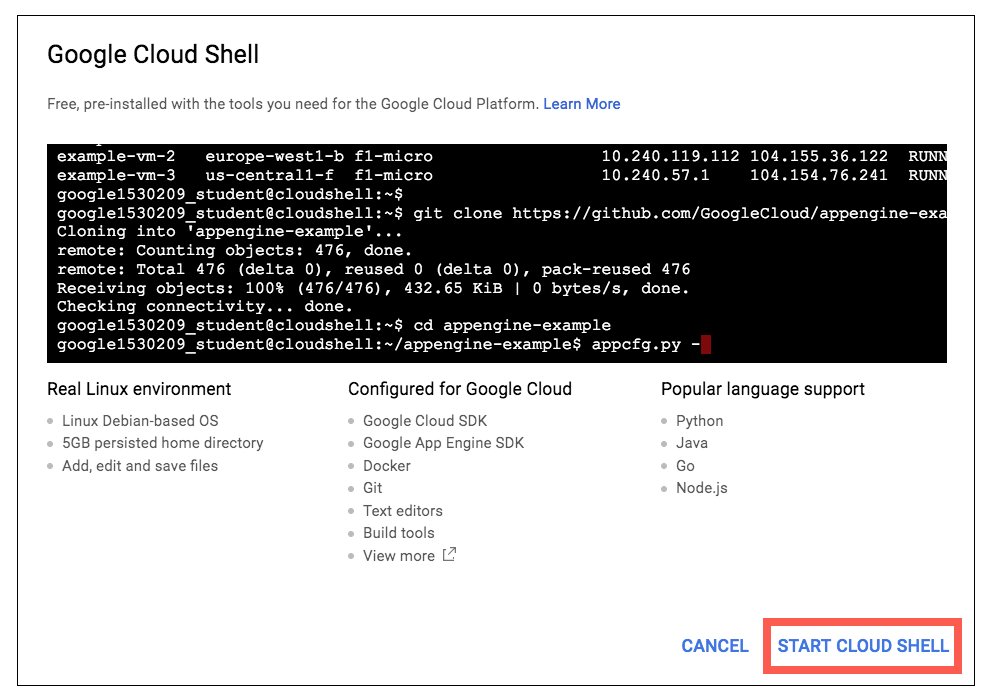
  1. In GCP console, on the top right toolbar, click the Open Cloud Shell button.
    Cloud Shell icon
  2. In the dialog box that opens, click START CLOUD SHELL:
    Start Cloud Shell
It takes a few moments to provision and connect to the environment. When you are connected, you are already authenticated, and the project is set to your PROJECT_ID. For example:

Cloud Shell Terminal
gcloud is the command-line tool for Google Cloud Platform. It comes pre-installed on Cloud Shell and supports tab-completion.
You can list the active account name with this command:
gcloud auth list
Output:
Credentialed accounts:
 - <myaccount>@<mydomain>.com (active)
Example output:
Credentialed accounts:
 - google1623327_student@qwiklabs.net
You can list the project ID with this command:
gcloud config list project
Output:
[core]
project = <project_ID>
Example output:
[core]
project = qwiklabs-gcp-44776a13dea667a6


Test the status of Windows Startup

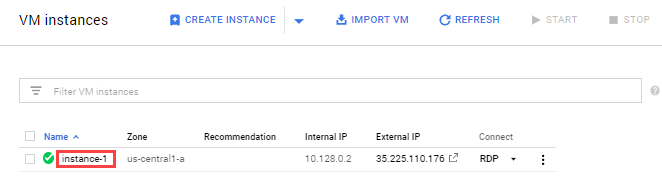
Allow a short time for the Windows Server instance to start up. Once it has been provisioned, it will be listed on the VM Instances page with a green status icon.
However it may not yet be ready to accept RDP connections, as it takes a while for all the OS components to initialize.
To see whether the server is ready for an RDP connection, run the following command at your Cloud Shell terminal command line:
gcloud compute instances get-serial-port-output instance-1 --zone us-central1-a
Repeat the command until you see the following in the command output, which tells you that the OS components have initialized and the Windows Server is ready to accept your RDP connection (attempt in the next step).
Finished running startup scripts.

Connect to your instance

Click the name of your virtual machine:
d6c378522f91ab55.png
Under the Remote Access section, click the Set Windows Password button.
8126ec53a6b696d9.png
A username will be generated.
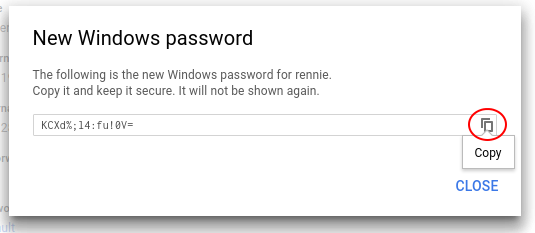
Click Set to generate a password for this Windows instance. This may take several minutes to complete.
Copy the password and save it so you can log into the instance.
90c54fe047cebc0.png

Remote desktop (RDP) into the Windows Server

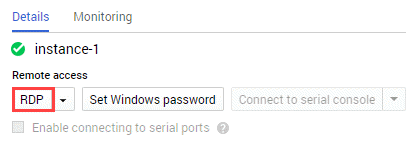
It's time to RDP into the Windows Server. You can RDP directly from the browser using the Chrome RDP for Google Cloud Platform extension. Click on RDP to connect.
CompEng_windows_rdp.png
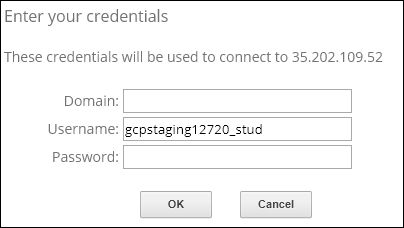
This prompts you to install the RDP Extension. Once installed, GCP opens up a login page where you use your Windows user and password to log in. Paste in the password you saved earlier.
178d465523cf95cc.png
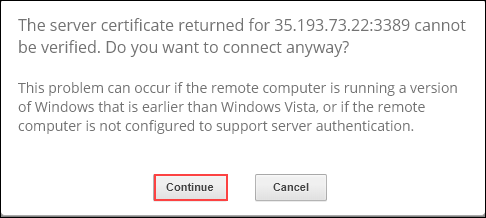
Click Continue to confirm you want to connect.
62ad6ace227976b9.png
When Server Manager opens you are connected to instance-1, the VM instance on the Windows Server.

Copy and pasting with the RDP client

Once you are securely logged in to your stance, you may find yourself copying and pasting commands from the lab manual.
To paste, hold the CTRL-V keys (if you are a Mac user, using CMND-V will not work.) If you are in a Powershell window, be sure that you have clicked in to the window or else the paste shortcut won't work.
If you are pasting into putty, right click.

2016年2月20日 星期六

哈佛大學長達75年的「快樂」研究:美好人生建立於良好關係(轉自 TEDXTaipei)

你的人生目標是什麼?
根據一份最近針對千禧年出生的年輕人所做的調查,有超過八成的年輕人表示他們的人生目標是想成為有錢人,而有五成的年輕人說他們另個人生目標是變得有名。
happiness (photo from psychologytoday.com)
其實並不難想像調查中年輕人對於名利的想望,起因於我們時常被規勸要在工作上全力以赴、接受更多挑戰、達成更高目標;這個想法也使我們對人生產生了一種想像:為了要有美好生活,必須實踐「拼命三郎」的行為模式與生活形態。
由美國哈佛大學教授塔爾班夏哈(Tal Ben-Shahar)所撰寫的暢銷書《更快樂》(Happier: Learn the Secrets to Daily Joy and Lasting Fulfillment)中,以「正向心理學」說明了拼命三郎型的人們把達成目標當成衡量成就的標準,而不重視追求目標的過程,以致於他們無法享受所做的 事情,老以為達到某個目標就能得到快樂。
班夏哈教授指出,實證研究和名人事蹟的確顯示,設定目標和個人成就確實有關聯,不過,和快樂之間就沒有直接關係。這也解釋了為何有些人達成目標後,卻沒有感受到原本預期會獲得的快樂感。

撇開功成名就,但如果其實快樂、健康、滿足感才是我們應該追求的人生終極目標,那又該如何達成?
哈佛大學醫學院臨床精神病學教授羅伯威丁格Robert Waldinger從他所主持的史上最長的「幸福感」(Happiness)研究,給了我們一個值得參考的答案。

Robert Waldinger: What makes a good life? Lessons from the longest study on happiness
這個哈佛大學針對成人生活所作的研究至今已進行75年,而威丁格教授是該研究的第四個主持人。從1938年開始,研究總共追蹤了724位成人,每一年研究團隊都會詢問研究對象的工作、生活、健康等狀況。
類似如此長期的大型研究都會面臨一些挑戰,例如:受測者中途退出、研究經費不足、研究員研究重心轉移或死亡而無人接手。但是基於堅持與運氣,原先的七百多位受測者中,至今還存活的大約有60%,而他們也都已經九十多歲。
研究是從兩大群背景迥異的美國波士頓居民開始。第一組是哈佛大學的大二學生,他們後來在二次世界大戰期間全都完成大學文憑,並且大部份的人都從軍參與戰事。第二組則是從波士頓地區最貧困的地區挑選出來的居民,他們住在破舊的房舍中,許多人家中都沒有乾淨的冷熱水。
當他們同意參加研究後,所有的青少年都被逐一訪談並接受醫療檢查,除此之外,研究人員還到所有研究對象的家中拜訪,親自與他們的父母親面談。後來這 些青少年長大成人了,進入各行各業,有工廠工人、律師、瓦工、醫生、某一任美國總統等;也有些人酗酒,有些人患有精神分裂,有些人從社會底層一路往上爬至 上流階級,也有些人則往全然不同的方向走。
大概在75年前沒有人可以想像這個研究至今仍持續進行,只是目前研究對象也開始轉向原先七百多位老先生老太太的兩千名子孫。
那麼,從七十幾年來、幾十萬頁的訪談資料與醫療記錄中,究竟帶給我們什麼樣的研究結果與啓發?

「有個很清楚的訊息:良好的關係讓我們維持快樂與健康。就這樣。」威丁格教授微笑表示,關於「關係」有三個重點:

I. 孤單有害 社交活躍有益健康

與家人、朋友、社群保持較多聯繫的人,心靈比較快樂、身體也較健康;研究也顯示,社交活躍的人比較長壽。孤單的感覺對身心都是毒害,如果人們非自願地感到孤獨,會容易感到不快樂,在中年時健康狀況會提早衰退,大腦功能較早開始退化,因此容易早逝。

II. 友不在數量多寡 而在關係深淺

我們在人群、聚會或婚姻中也會感到孤獨,所以真正重要的是:關係的「質」。高衝突的關係對我們的健康有負面影響,例如:身處爭執不斷的婚姻,可能在健康上,還不如離婚的好。而反之,在良好與溫暖的關係中,對健康就有保護作用。
根據研究,人們進入五十歲時,影響他們日後的健康狀況的,不是膽固醇高低,而是他們對目前所在關係的滿意度。意思是說,在五十歲對關係擁有最高滿意度的人,在八十歲時是最健康的一群。顯然,親密的關係能減緩老化帶來的生理與心理衝擊。

III. 良好關係不只保護身體 也保護腦力

研究顯示,是否能在年老時感受到仰賴與信任另一方,對於腦部健康有重大影響。八十幾歲的老先生若能感覺到有可以依靠的對象,他的記憶力就能更長時間地保持清晰;反推之,若老先生沒有這種感受,他就可能提早面臨記憶力衰退。

從這個75年研究結果所得的智慧,在在說明了關係的重要—最快樂健康的人是與家人朋友擁有親密關係的那些人。只不過,對絕大多數的人而言,維持關係並不是件簡單的事,如著名心理學家阿德勒也曾說過,人的煩惱都是從人際關係而來。
「美好人生建立在良好關係上。」威丁格教授在結語強調著,雖然不容易,但是卻值得我們投入精神時間。不論你現在是二十五、四十或六十歲,問問自己,除了追求工作成就,你是否也想開始打造你的美好人生呢?

原撰稿:廖庭瑋
網址:http://tedxtaipei.com/articles/what_makes_a_good_life_lessons_from_the_longest_study_on_happiness/

疑問:
美國是一個重視個人隱私與個人主義的國家,社區內甚至家族裡的連接較少,因此不難想像會有以上的結果。當回看華人社會,其社會結構內本來就存在家族、社區的小團體連接。因此,華人社會的良好關係應該是既有條件,那促使華人社會感到幸福的因素還有哪些?

建議跟進(keywords):
華人社會幸福感、陸洛

2012年5月26日 星期六

陸生來台與高教產業的迷思


剛出席了在商學院的《陸生來台與高教產業》的論壇。所有與會的發表人都讓我聽到對高教產業(高教是產業嗎?)的看法。我想先提提最遲來,但也最突出的立法院副院長洪秀柱。她唯恐台下出席者會指責她沒做事(她先問現場有沒有陸生,大概就是這個用意),一上台就七情上面、手舞足蹈地描繪她在立法院如何"大力維護"陸生來台的法案、如何在賴清德等立委的反對下“努力通過”陸生來台的法案。我想說,我不是來看誰的功勞最大,我是想听你對陸生來台的看法和你接下來會採取的步驟(後者最重要) ==!!! 

會上大陸學生問了許多問題。雖然我不是陸生,可是我也想說說我的看法。準備好問題後,主持人說沒有時間了,我只好把我的問題po在這裡。

我先自我介紹,我是教育系碩士班的學生,也是在這一波教育與政治角力中,為了不要形成歧視陸生,而在學費上被拉進來同等對待的外籍生之一。許多人聽到我是外籍生,就會問我一個問題“你畢業後會留下來工作嗎?”(真的很多人問~)我都是說:“我不太確定”(雖然我老早打算在馬來西亞教書一輩子,只是因為這是2年或更多年後的事,誰知道會發生什麼事啊~)

我想問的問題是,為什麼台灣看待外籍生來台和看待陸生來台竟然有這麼大的區別?外籍生已經來台好多年了,一直都沒有爭議?我認為,除了政治上意識形態的固著之外,還有另一個問題值得討論。針對意識形態的固著,即認為沒有納稅的陸生不應該享有台灣納稅人的資源,現場的發表人和聽眾都有用一個很好的例子來反駁了-即台灣學生也一樣到外國享有別人的資源,這是全球化/世界村必然的現象。

另外一個我認為值得討論的問題是:台灣是否對中華學術存有不自覺的自卑感?當來自西方或日韓國家的外籍生要到台灣留學,台灣表現出來的是無比的歡迎。可是對同樣使用華文的大陸,竟然會有這樣的反應!

文化因素與學術因素
首先,以我一個外籍生來看,會出國留學,一般上有著2種因素(這裡不包括經濟因素如學費便宜與安全因素如自身留在自己國家不安全而決定到其他國家等其它因素)。第一個是文化因素,即希望體驗異國文化來豐富對該國文化的理解。第二個是學術因素,即希望往該領域學術水平相對先進的國家來學習與提升學術方面的造詣(比如哲學或法學都向往德國去)。以台灣來看,如果想要多招收因為文化因素而來的學生,可推出長期學位課程(如現在進行中的華語文教學學位)和短期課程(華語與文化學習課程)。通常因為文化因素而來台就學的學生,都是來自非華語源流國家的學生。如果有關學生因為學術因素而選擇來台的學生,則『必須』是來自華語源流或個人事前自行學習與熟悉華語文化的學生。這兩者當中,我認為前者能通過初階的的交流(即通過翻譯、相互學習語言來達到語言與文化的交流與交融),後者則能更上一層地達到高階的交流(學術理論的交流、提升與創新)。非華語源流的外籍生來台可達到了前者的初階交流,這一方面可以通過這幾年來台灣的文化與各方面的發展可見一二。

那,陸生來台大部分會因為哪些因素呢?我認為,以文化來說,兩地差異不大(雖然台灣以故宮博物館的館藏等來指出台灣相對保有更多的中華文化,可是中國大陸遍地都是歷史,一不小心隨便一片土地下就挖出幾千年前的古物),所以我認為陸生來台的原因主要是因為學術因素。這個因素也通過我和陸生的交談中確認了一些(我的室友是陸生,室友的陸生朋友),包括法律系的學生希望來學習民主國家的法學來為將來的中國法制進行建設與改進(我個人也是因為台灣多元的教育文化而吸引我到台灣來學習我認為是全亞洲最先進的另類教育(alternative education)

語言、學術研究與創造力
資料取自:www.nobelprize.org
既然陸生來台主要是因為學術因素,那台灣可以通過陸生來台學習而讓學術得到提升與創新(最起碼有學位論文的發表)!難道沒有人看到這一點嗎?非也非也~我認為不是沒有人看到這一點,而是大家都知道,只是不好意思提出,因為大家比較關心能不能用英文來發表並獲得刊登在SSCI, SCI, EI的期刊。這個就是我前面所提出的“對中華學術的自卑感”。簡單來說,就是大家認為用英文來進行學術研究或撰寫學術論文,比起用華文來得國際化或“高級”。比起來,日本似乎不在意這些,而繼續使用日文來進行學術研究。那,日本有沒有因為沒有那麼“國際化”而失敗呢?不曉得,我只知道我查了nobelprize.org發現日本曾經有16個諾貝爾獎得主華人世界,即中國大陸加台灣加起來只有6(網站顯示9個,可是要扣掉3個在中國出生的瑞士人、日本人和美國人。其實,嚴格來說還得再扣掉不知道多少個在美國做研究的,唉~)。


所以,我認為學術研究,必須要建立在一個基礎上,即鼓勵學術界使用一種當地最精通的語言來進行學術研究。因為語言的使用,可分為初階的日常溝通和高階的知識建構。而且,每個人必須先經過一段長時間的初階使用,才能進一步使用高階的語言來進行知識建構與創新。那,如果只是使用本國的語言,會不會導致閉門造車、夜郎自大或坐井觀天呢?我認為真正有研究精神和興趣的研究人員,會在發現自己的不足,且覺得某一個國家的技術或水平值得他/她參考,他/她會主動通過各種方法來得知有關資訊(如自己學該國語言或通過翻譯等)。

換句話說,招收陸生來台,能達到的交流絕對比招收不諳華語的外籍生來台所能達到的交流層次來得高許多。畢竟,大家不會有很大程度上的語言障礙(大家都知道什麼叫量子),只會出現少許的語言文化差異(比如不知道台灣說的murmur是什麼意思)。我認為,這種高階的學術交流絕對能讓兩岸的學術水平得以提升,逐步創造知識,並開創屬於中華學術明亮的未來。

總的來說,想要達到文化交流,可以繼續並擴大招收不諳華語的外籍生。但是,想要提升中華學術的水平和創造力,就必須開放熟悉華語的陸生來台學習。當然,所謂的開放,也包括了不會設定一些“三限六不”、“六限十二不”的措施,讓每個學生在生活安定的情況下自由開放的進行學術研究。


後記:不知不覺,竟然用了2000多字的篇幅來表達。還好我沒有在論壇上發表,不然我想我不會私下整理出這麼長的文章,或許也會讓主持人要求我問重點就好。

2012年4月26日 星期四

決定未來的十種人-說故事的人(Storyteller)

說故事的七個理由
  1. 說故事可以建立可信度。
    1. 親身實地研究的故事(來自最近觀察到的第一手故事。
    2. 熱忱和新鮮的觀察值得尊重。
  2.  說故事可以紓解強烈的情感。
    1. 感人肺腑的故事可以激起情緒反應。
  3. 故事“允許”去探討矛盾或令人不悅的議題。
    1.  故事可以越過我們最初疑慮的防衛心理,敞開胸懷,討論該議題。
  4.  說故事可以主導小組的想法。
    1. 動人的故事可以作為促成小組共識的語言。
  5. 說故事會創造英雄。
    1. 故事建立在真實人物的故事上。
  6.  說故事可以提供你變革的詞彙。
    1. 最好的故事裡,都擁有豐富的詞彙,而這些詞彙可以強化觀念,加速創新之傳播。
  7.  好故事能在混亂中形成規則。
    1. 好故事能破除資訊迅速膨脹,而無從選擇的困境。
    2. 說故事是開始建立關係的方法(不論是生活上還是工作上)

好故事的特點包括:
  •  有基礎的(歷史、神話)
    • 有數千年的歷史做後盾
    • 神話是永垂不朽的
  •  感性的 
    • 用感人的情節說故事
    • 故事會形成情感連接
  •  真實的(或有真實的基礎)
    • 把多年的心血結晶整理成故事大全
    • 把真實的人打造成英雄
  •  提供幻想空間(想像空間)
    • 創新的故事捉住我們的幻想
    • 把真實的人打造成英雄
  • 有啟發性的
    • 能啟發其他的說故事人,願意繼續傳播
    • 把故事昇華以拉高現實層次,並從中得出啟發性的結論
  • 趣味化的
    • 能把簡單的構想、素材轉化成有趣的故事
  •  新穎、新鮮的
    • 適當的故事配合適當的情景
    • 好故事沒有既定,沒有規定,而且每一次都是新鮮的人、事、物。 

要說好的故事,除了故事有以上特點,必須知道以下方法:
  • 運用各種媒體
  • 說故事之前,知道自己所要達成的明確效果
  • 懷抱理想,謹守真實性的核心
  • 故事可以從日常生活的小英雄發掘
  • 故事的靈感來自開放地聆聽他人而來的
  • 以夢想找出新方法來說故事
  • 不必排斥使用資訊式廣告(Informecial)
參考文獻:
Kelly, T. & Littman, J.(2008)。決定未來的10種人 : 10種創新,10個未來(林茂昌譯)。臺北:大塊文化。

2012年3月31日 星期六

遇見兩位老師-王致忠與黃秋榮(下)

聽過王致忠老師的分享,不到一個星期內,教育學院有又邀請了黃秋容老師到來。這兩位老師所教的學生,都是大眾眼中的放牛班。黃老師所教的班級,是私立高職的學生(怎麼有點像是同一批學生,即從國中上到高職)。由於他在實習期間必須寫日記,另外他也持續通過電郵與指導教授保持聯繫,所以這段時間內所寫的日記與電郵,便成他接下來所出的書《菜鳥鮮師黑玫瑰》的主要內容。

他用心了整理了教書及帶班心得,並通過投影片一一向在場的未來老師與所有聽眾分享。我從他的演講當中,聽到幾個對我來說十分有感覺的3個要點。第一,他說帶班和教育都是因地制宜的,絕對不是一套方法走天下。所以,他採用各種普通老師眼中的“另類”方法來帶班。

第二,他相信每個槍聲背後,一定有個(教育)故事。所以,他選擇聆聽學生的故事,給予學生更新的機會,為學生撕標籤,成為學生暖暖包,最後再加上等待。 


最後,他總結說,其實教育其實就是一種感染,只要通過感染,教育才能真正發生。

以下是我錄下他所分享的一些經驗。
 以下是黃老師所寫的書《菜鳥鮮師黑玫瑰》


遇見兩位老師-王致忠老師與黃秋榮(上)

上個星期,教育學院邀請了兩個中學老師來演講,一位是國中(初中)老師-王政忠,一位是高中老師-黃秋容。兩位老師都是通過出書,來分享自己的教學經驗。這讓我想起,我是不是該好好整理自己過去六年的點滴,可以作為過去6年的一個總結,也可以讓我在計劃未來時有個基礎。

王致忠老師的演講,再次提醒一句老掉牙的話(卻時常被一些老師忘記),即“教育就是給孩子希望”。而他所注重的希望,就是對未來前景的希望與夢想。他在全台灣最窮的鄉鎮(正確說法是全台灣稅收最少的鄉鎮),學生對未來沒有什麼期望,國中畢業後,只有一條路可以選-當地的私立高職。而他所做的,就是讓學生知道,他們其實還有其它選擇,並協助他們創造有選擇的條件(基本能力)

另外,我個人相當喜歡他所說的兩句話。第一句是有關數字的。1乘1乘1乘1......乘上1000次,還是1。可是,1.1乘1.1乘1.1......乘上10次,就會變成2.59374246。這兩個,分別代表你如果每天所做的事,保持不變,沒有進步,也沒有突破,那過了若干年,你還是你,1還是1。可是,如果你堅持每一天比昨天多做0.1,那累計(乘積)的效果絕對是超過1,而且是在一段不長的時間後,就可以看到的。所以,0.1代表“丁點”的力量,“丁點”力量只要堅持、持續,就一定會有效果。即使是1.01乘1.01.,也只需要乘上70次,就可以超過2了。

1×1×1×1×1×1×1×1×1×1=1
 1.1×1.1×1.1×1.1×1.1×1.1×1.1×1.1×1.1×1.1=2.59374246
(差別只是每個1增加0.1而已)

第二句,是他在推行新活動時,所用來帶動老師的方法,即讓學生的動力來作為老師動起來的動機。他讓學生想學習(實際上是背英文單字或文章等)的動機,來帶動老師。這樣的方法,比起規定老師必須要做,來得有效與人性化。前者代表一種老師的內在動機,後者代表一種外在動機,而內在動機的成效與持續性往往都比外在動機來得高。


順便推薦一下王致忠所寫的書--《老師你會不會回來》